How to Transcribe MP4 to Text with AI
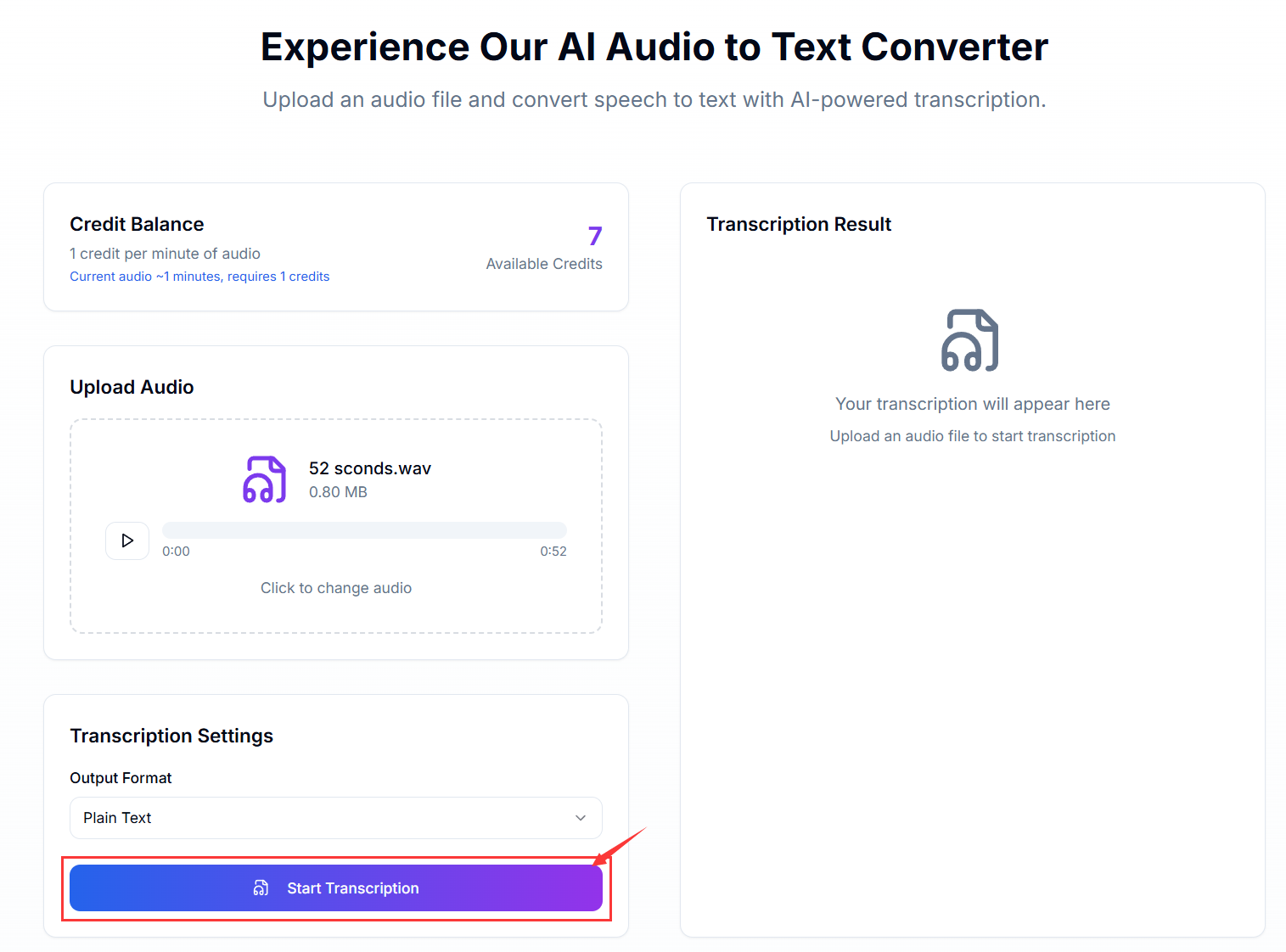
Turn MP4 Videos into Searchable Text
MP4 is the default format for interviews, webinars, and social clips. With modern AI transcription, you can turn any MP4 into clean text for captions, blogs, or research notes without manual typing. This guide walks you through a simple workflow that keeps quality high and edits quick.
Best Formats for Video & Audio Uploads
Aidio is tuned for MP4 uploads and also handles common audio files with the same accuracy. If your footage is already MP4, you can upload it directly—no conversion needed:
- MP4 - Ideal for video with built-in audio tracks
- MP3 - Great for extracted audio or podcasts
- WAV - Uncompressed audio when you need maximum quality
- M4A - Common format for mobile voice notes
- WEBM - Lightweight web-friendly recordings
Your MP4-to-Text Workflow
Step 1: Prepare Your MP4 Audio
Clear audio drives accurate transcripts. Check that speech is loud enough, background noise is minimal, and the video doesn’t have overlapping dialogue. If needed, trim the file so only the parts you need are processed.
- Keep speakers close to the mic or camera
- Reduce music or ambient sounds before uploading
- Split long recordings into chapters for faster review
- Use descriptive filenames like interview-guest-topic.mp4
Step 2: Upload to Aidio
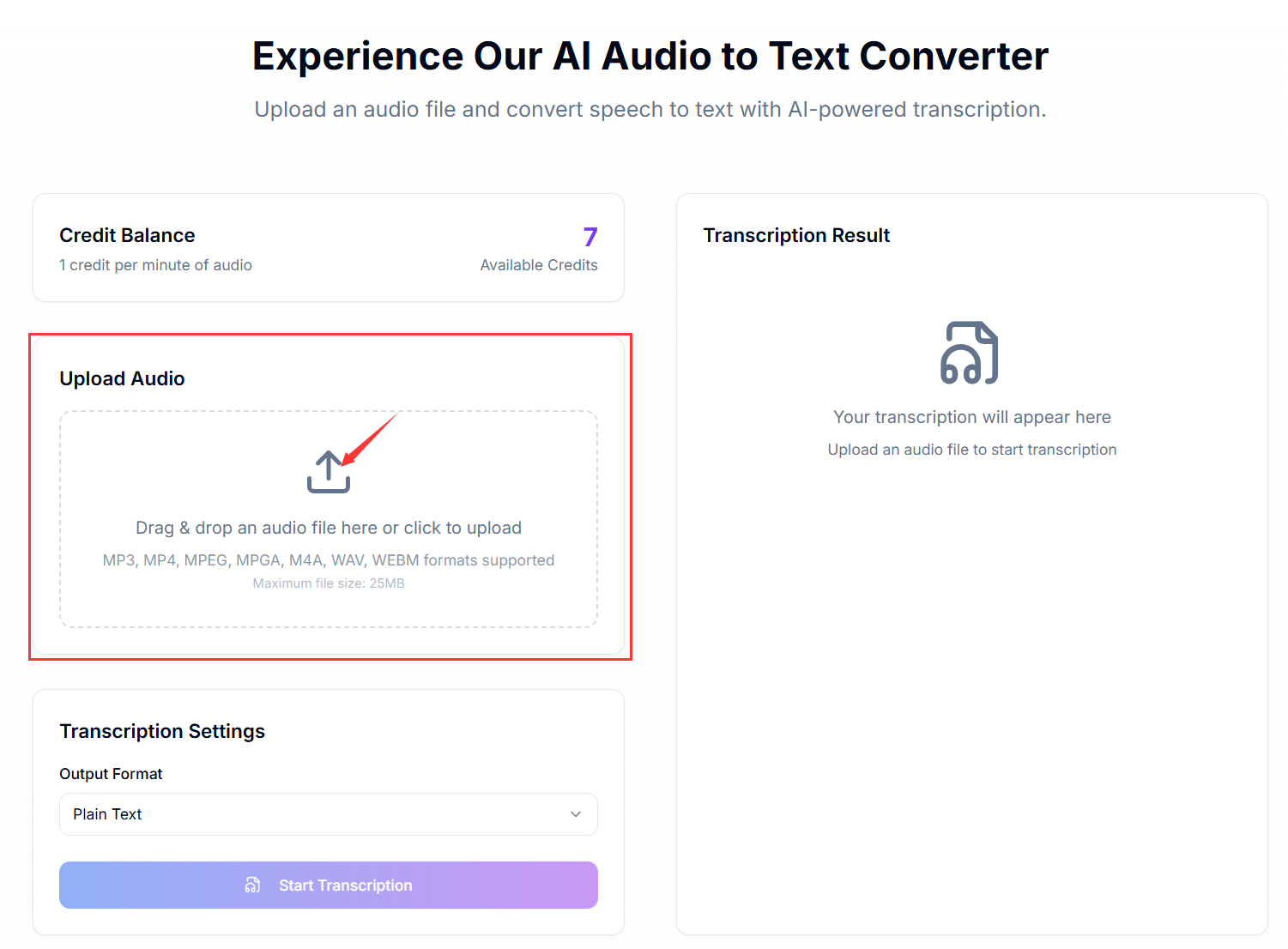
Drag and drop your MP4 into Aidio. We process the audio track automatically, so you don’t need to extract it yourself. Uploads stay secure and finish quickly.
- Drag your MP4 file into the upload area
- Or click the button to browse from your computer
- We handle different frame rates and bitrates
- You’ll see a confirmation when the file is ready
Step 3: Let AI Transcribe
Once uploaded, the AI model transcribes speech, handles accents, and can separate speakers in most cases. Progress updates keep you informed while the video audio is processed.
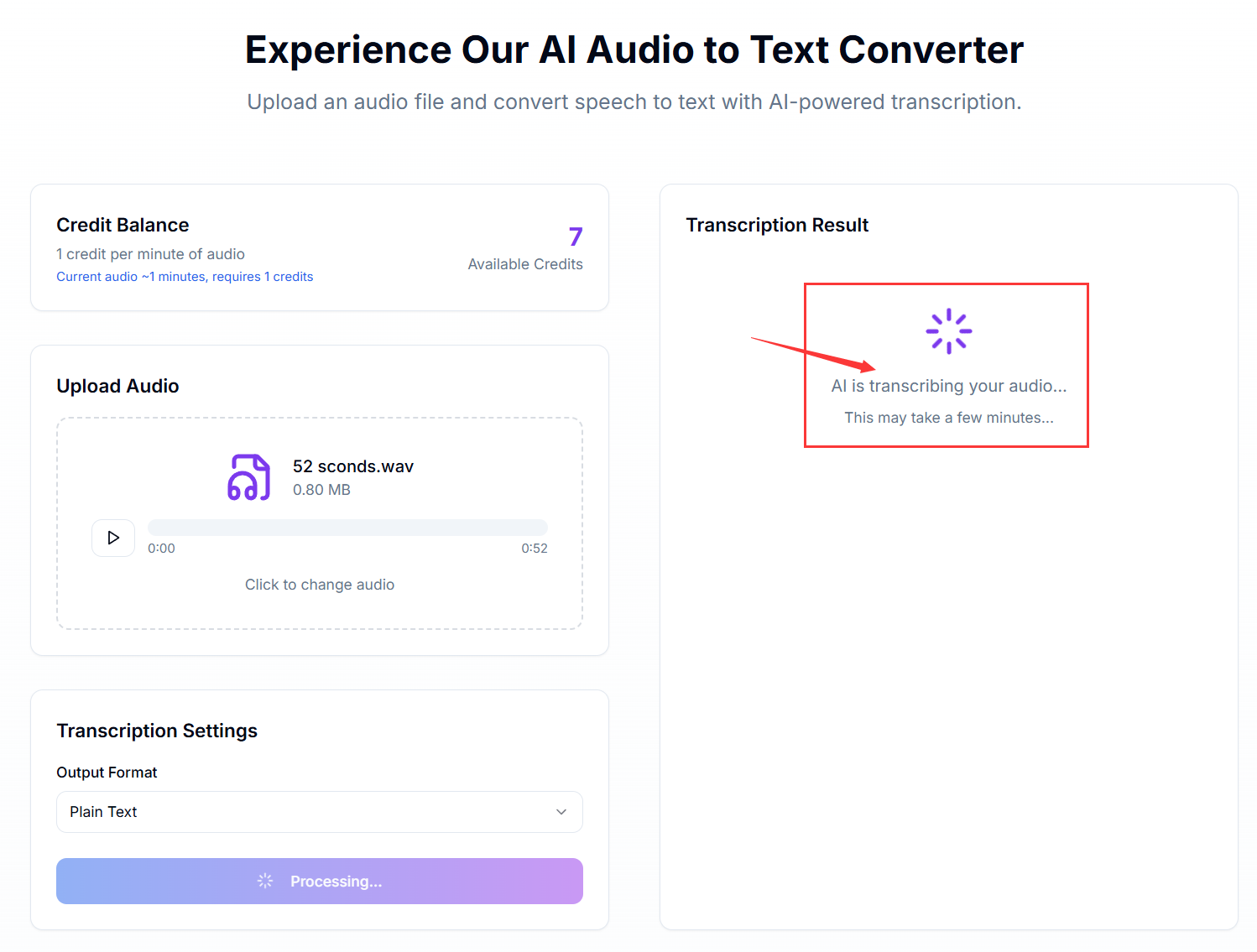
- Automatic transcription starts right after upload
- Speech in multiple accents is recognized accurately
- Processing time scales with video length, but stays fast
- Review progress in real time in your dashboard
Step 4: Edit and Export Captions
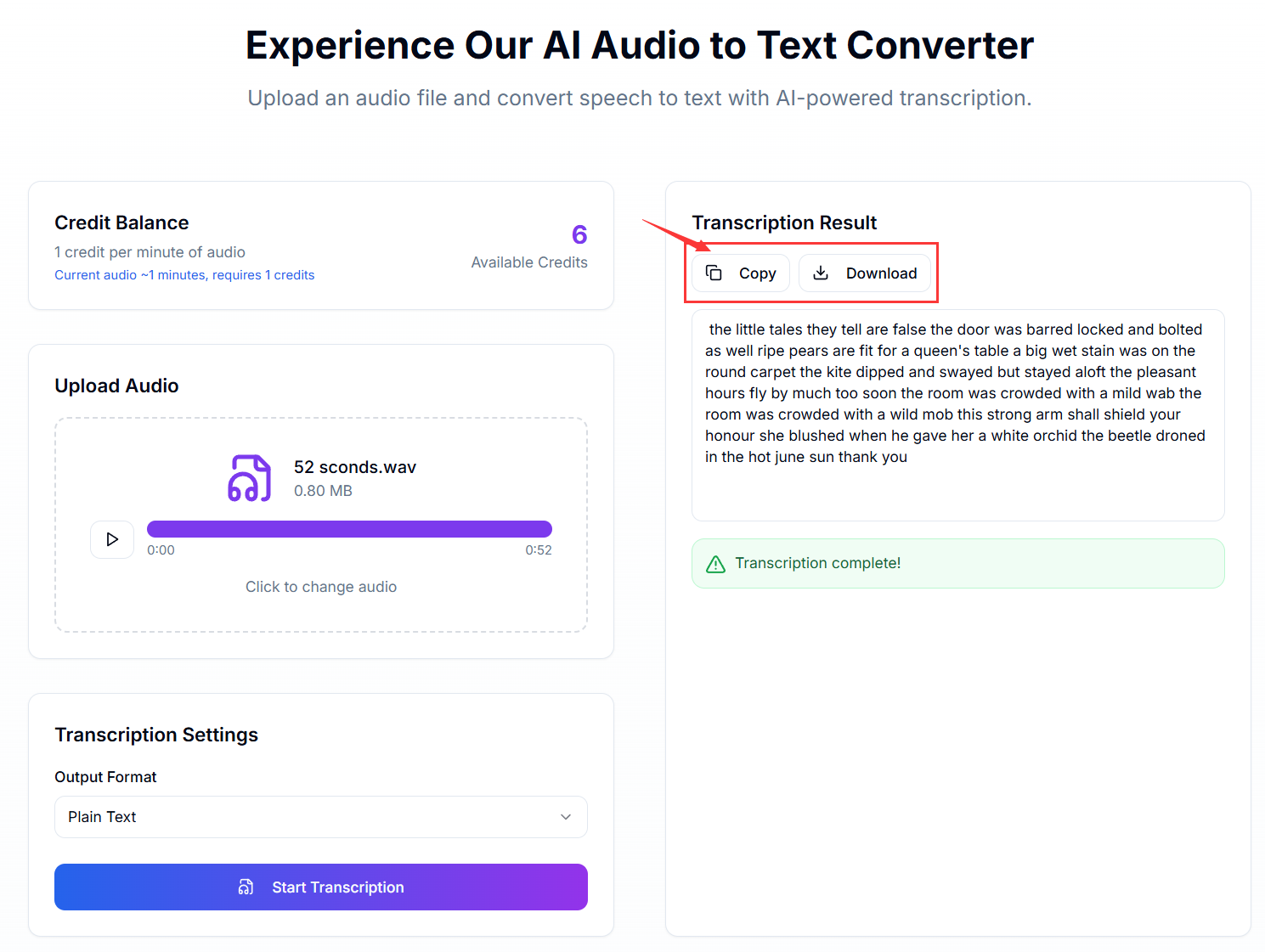
Review the transcript alongside your video audio. Fix names or jargon, then export captions for SEO-friendly publishing or repurposing into articles and show notes.
- Use the editor to sync audio and text quickly
- Correct brand names, guests, or technical terms
- Export to TXT, DOCX, or SRT/VTT subtitle files
- Reuse the text for blogs, social snippets, or SEO descriptions
Pro Tips for Crisp MP4 Transcripts
These quick wins boost accuracy and readability:
- Record in a quiet room and avoid cross-talk
- Use external mics for webinars or interviews when possible
- If the video is long, process by chapter for easier edits
- Add timestamps for sections that matter to your audience
- Pair the transcript with your video to improve SEO
Fixing Common Video Issues
If something looks off, try these fixes:
- Re-export the MP4 with higher audio bitrate if speech is muddy
- Trim silent or noisy intros/outros before upload
- If upload fails, check file size and your connection
- For heavy background music, lower the track volume first
Publish-Ready MP4 Transcripts in Minutes
AI transcription makes every MP4 searchable and shareable. With clean audio prep, you get accurate captions, notes, and articles without extra effort. Start with Aidio and turn your videos into text that people—and search engines—can use.